Every page in Replo has a version history. Any time you make an edit, whether through chat or select mode, Replo records a version that you can preview and go back to.

Accessing Version History

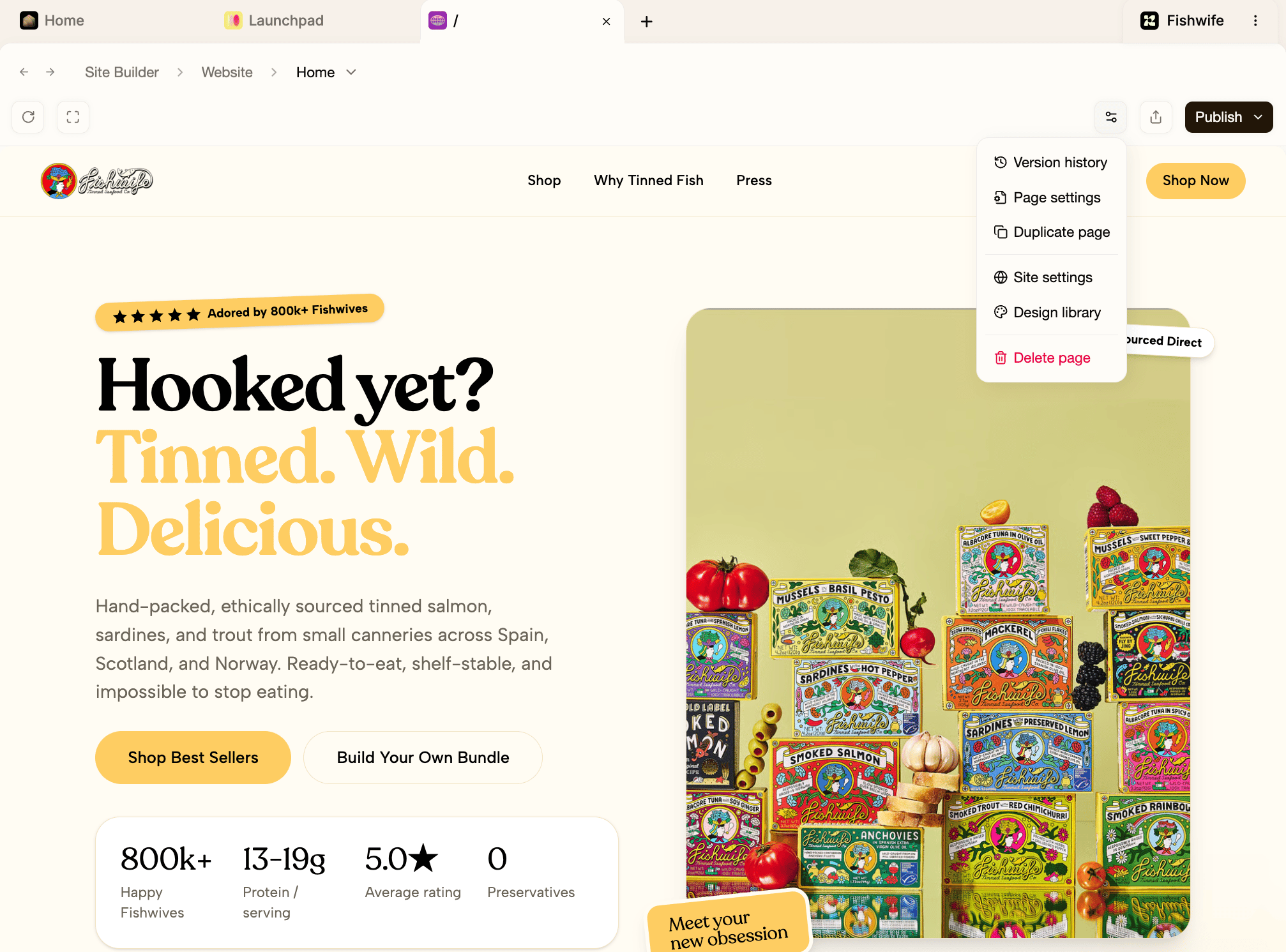
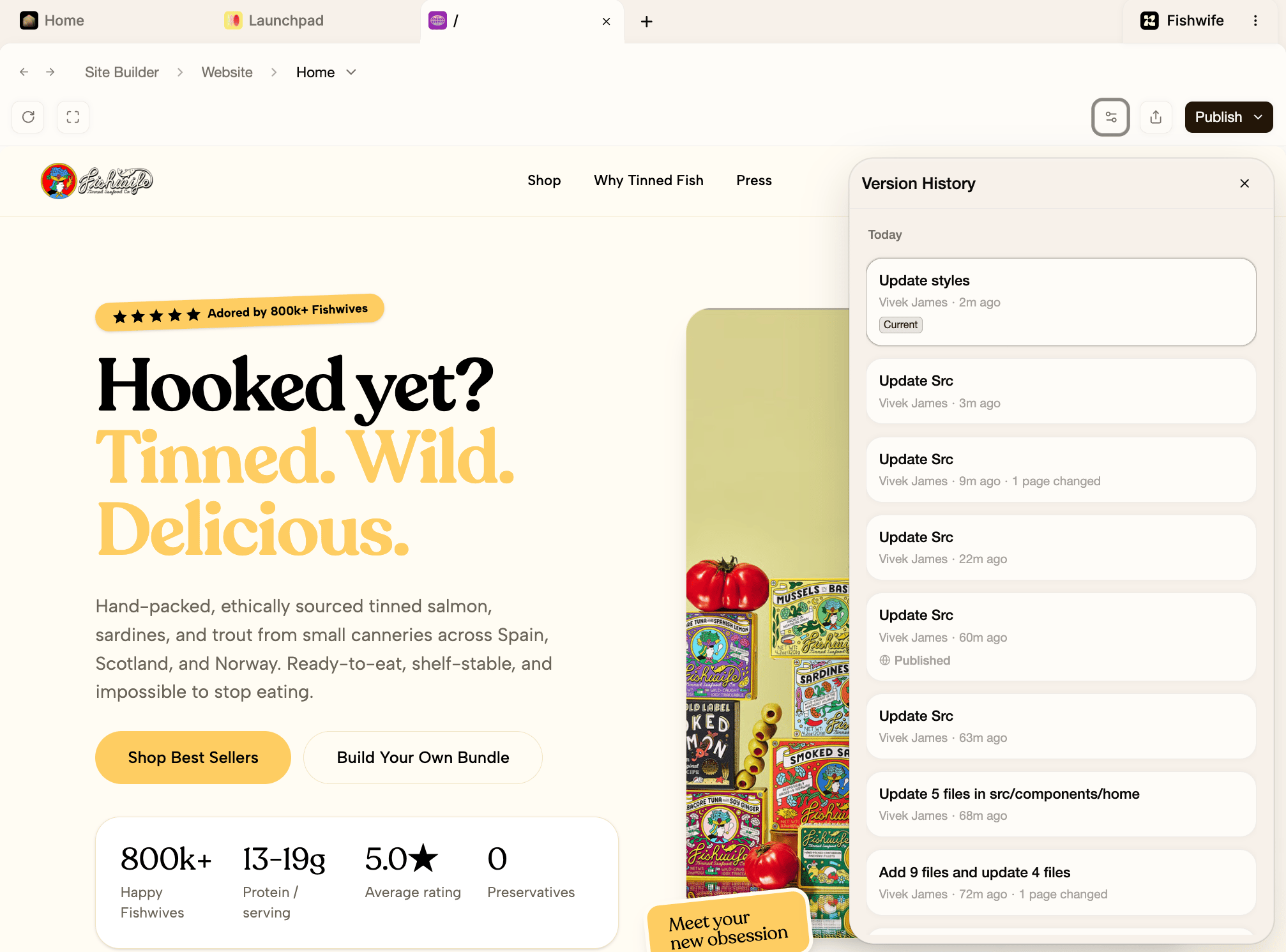
Open the ⋯ more-options menu in the toolbar and choose Version History. The more-options menu open in the Website Builder toolbar, with Version History at the top Once open, you’ll see all your versions listed newest first, grouped by day. Each entry shows what changed, who made the edit, how long ago, and how many pages it touched. The version you’re currently on is marked Current. The Version History panel listing versions newest first, with the current version marked
Previewing and restoring

Hover any version to reveal Restore to this version.
  • Preview shows what that version looked like in the Website Builder, so you can compare before committing.
  • Restore resets the page (or pages) back to that point in time.
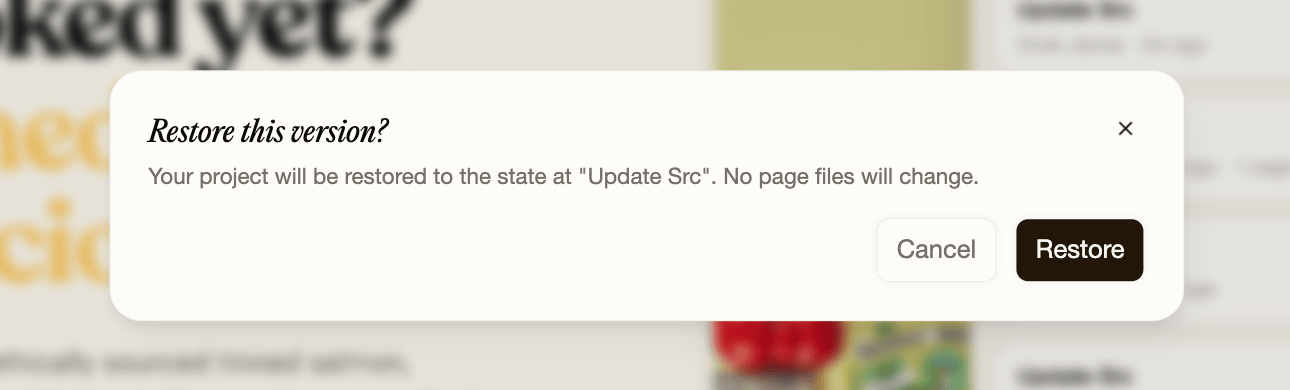
Restoring opens a confirmation that lists exactly which pages will be updated to match the selected version. Click Restore to apply it, or Cancel to back out. Restoring creates a new version, so you can always undo it by restoring a later one. The Restore this version confirmation listing the pages that will be updated, with Cancel and Restore buttons