

1. Prepare Your Brand Kit
Before generating pages, make sure your brand kit in Brand Studio is set up.- Colors, fonts, and styles will automatically apply to every page you generate.
- This ensures consistent branding across all new pages.
2. Add Product References
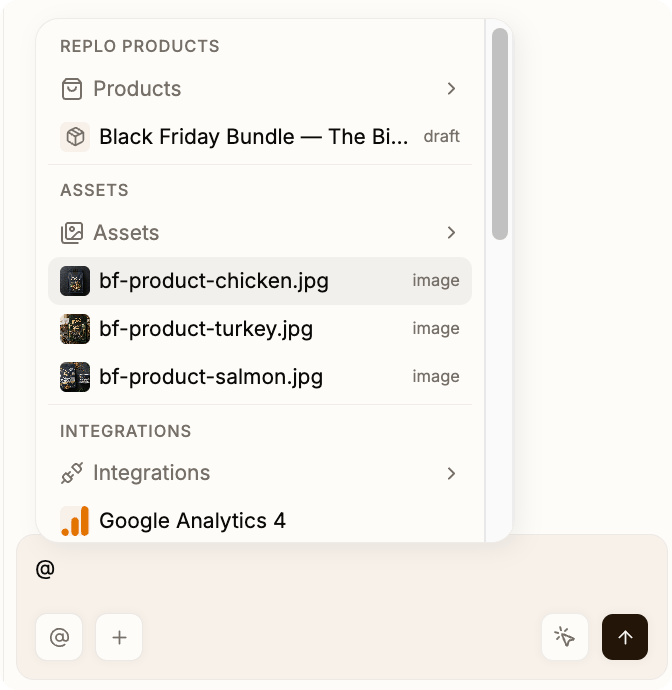
Whenever possible, reference your products.- We’ll pull in product data (title, images, price, variants, etc.) directly into the page.
- Pages generated this way are automatically connected to your store.
@ in the chat to reference products, assets, and connected integrations directly in your prompt.
3. Bring in Screenshots
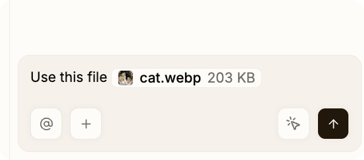
You can be as general or specific as you want when working with images and URLs:- Recreate an entire page - Copy the full layout and structure
- Extract specific elements - Grab just the color palette, a particular section, or component style
- Match the vibe - Apply the overall aesthetic or feel of a reference page
- Customize for your brand - Replo automatically adapts designs to fit your existing design system
- Pages or sections you like → AI will recreate layouts and styling.
- Ads → AI will match the landing page offer to the ad’s messaging and link it to the right product.
4. Start Without References
No screenshot? No problem.- You can just describe the page you want (“hero with product image, testimonial section, and CTA”).
- Add a product reference if you want it connected to your catalog.
- Or keep it general, we’ll still generate the structure for you.
5. Work in Parallel
- You can start one page generation and immediately create another.
- Most requests finish within a few minutes.
6. Advanced Options
- Upload HTML or React code: Drop in a few sections or a lightweight page to generate from code.
- Figma exports: Export code from your Figma designs and bring them in to instantly generate pages. (Use Figma to code plugin, copy the React JSX code and paste it right into chat)
Best Practices
- Set brand styles first → Saves time and ensures consistency.
- Reference products when possible → Guarantees real data is pulled in.
- Use concise screenshots → More reliable results.
- Don’t wait around → Start multiple generations and come back once they’re ready.